Crux for Android
Crux for Android is a post-quantum secure VPN client. It carries your traffic over the WireGuard protocol and layers Arqit's Symmetric Key Agreement (SKA) on top, so the keys protecting your tunnel are rotated continuously from a quantum-safe source rather than agreed once at connection time.
In day-to-day use it behaves like any other VPN app: you pick a tunnel and tap Connect. The work is in the one-time setup, which registers the device with the Arqit SKA-Platform that supplies the keys, and then loads the tunnel your administrator issued.
These guides walk through every screen in order. Nothing here requires prior VPN knowledge, but each step names the exact values your administrator needs to give you, so you can gather them in advance.
Before you start
| Requirement | Detail |
|---|---|
| Android version | Android 8.0 or later |
| Permissions | Camera, to scan tunnel QR codes; and a VPN configuration, requested on first connect |
| Network | An internet connection that can reach your SKA-Platform |
| Account | Credentials issued by your administrator — see below |
What to ask your administrator for
Setup fails without these, so collect them before you begin.
For SKA-Platform registration
- Username and password — your SKA-Platform account
- Realm ID — the tenant your device belongs to
- Domain and Region, but only if your deployment does not use the defaults
(
ska.quantum.cloudandska)
For the tunnel itself
- A WireGuard QR code, or a
.confconfiguration file, or the interface and peer values behind them
How setup works
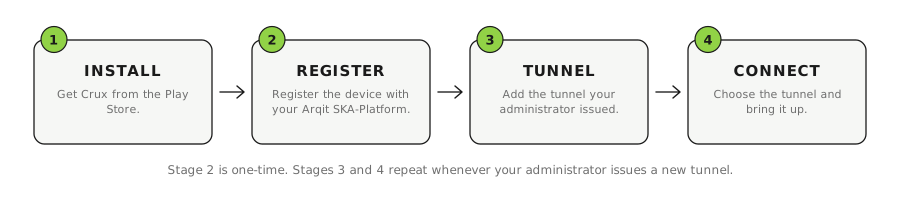
Setup runs once. After that, Crux opens straight to the connect button. Tap the diagram for a full-size view.
The app has four tabs — Home, Tunnels, Settings and About — but unlike most tab bars, two of them are switched off until you have earned them. Settings stays greyed out until the device is registered, and Tunnels until at least one tunnel exists.
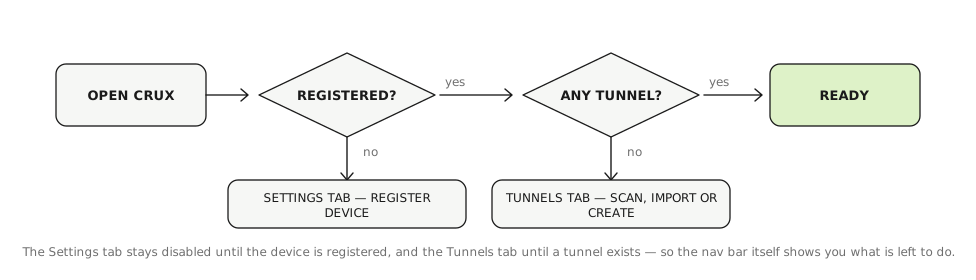
The nav bar doubles as a progress indicator: whatever is still greyed out is what you have left to do. Tap the diagram for a full-size view.
Use the buttons on Home, not the nav bar
Because Settings is greyed out before registration, you cannot open it from the nav bar to register. Use the Register button on the Home tab instead — it opens the same screen. The same applies to your first tunnel: Create tunnel on Home opens the Tunnels tab with its add menu already expanded.
The guides
-
Install the app
Get Crux onto the device from the Play Store. -
Register the device
Register with the Arqit SKA-Platform from the Settings tab. -
Add and manage tunnels
Scan, import, create, edit and delete tunnels. -
Connect and disconnect
Bring a tunnel up, read the status, and switch between tunnels. -
Settings and admin tasks
Export tunnels, read the log, and deregister the device. -
Troubleshooting
Work out what failed from the application log.
For the change history of each release, see the Android release notes.