Connect and disconnect
Once the device is registered and at least one tunnel is saved, the Home tab stops explaining setup and becomes the connect dial. This is the screen you use every day.
The idle state
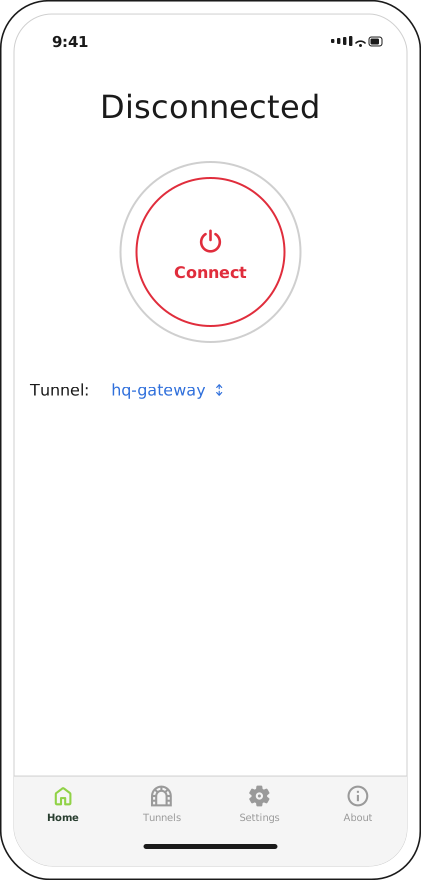
The heading reads Disconnected, the dial is outlined in red, and the tunnel to be used is named beneath it.
If you have saved more than one tunnel, the line beneath the dial is a picker — tap the tunnel name to choose a different one. With a single tunnel it is plain text, because there is nothing to choose.
Whatever the picker shows is what the dial will bring up. Check it before connecting.
Connecting
Tap the dial. The first time you ever connect, iOS asks permission to add a VPN configuration and confirms it with Face ID, Touch ID or your passcode; that prompt does not appear again.
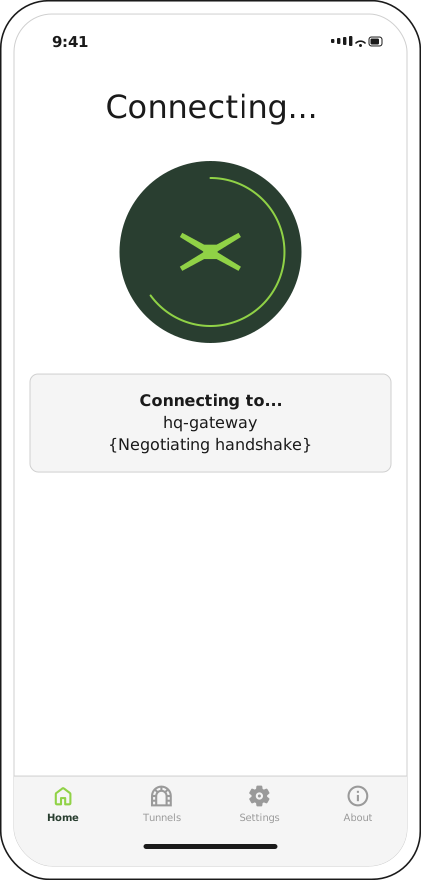
The dial's ring rotates while the handshake is negotiated. Tapping it again during this phase does nothing — the button ignores taps until the state settles.
Connecting normally takes a couple of seconds. It involves more work than a plain WireGuard handshake: Crux asks the SKA-Platform for a session key, applies it as the tunnel's shared key, and only then brings the interface up.
If it does not settle, see Troubleshooting.
Connected
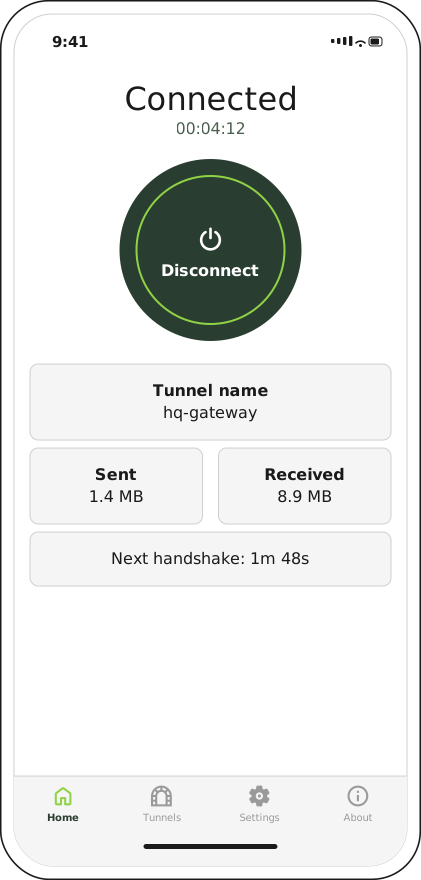
The timer under the heading counts the current session. Traffic counters and the handshake countdown refresh once a second.
| Reading | What it means |
|---|---|
| Timer | How long this session has been up, as hh:mm:ss |
| Tunnel name | Which tunnel is carrying your traffic |
| Sent / Received | Bytes over the tunnel this session |
| Next handshake | Time until the next scheduled WireGuard handshake, counting down from two minutes. due means it is overdue |
Received climbing while you browse is the reliable sign that traffic is flowing. Sent rises on its own from keepalives even when nothing is reaching the far end, so it is not proof of a working route.
Disconnecting
Tap the dial again. The heading changes to Disconnecting… briefly, then back to Disconnected, and the timer resets.
Disconnecting tears down the session key along with the tunnel. Reconnecting agrees a fresh one — sessions do not resume, and there is no cached key to reuse.
What happens in the background
- Key rotation — the shared key protecting the tunnel is rotated for the life of the session. You will not see this happen; it is not a reconnection and the timer does not reset.
- Losing the network — moving out of coverage does not disconnect you. WireGuard keeps the interface up and resumes when a route returns. If the outage is long enough for the peer to expire the session, the tunnel drops and you reconnect by tapping the dial.
- Leaving the app — the tunnel stays up when Crux is backgrounded or the device is locked. The VPN indicator in the iOS status bar is the system's own, and shows the tunnel is live even when Crux is closed.
Next step
For everything around the edges — exporting tunnels, reading the log, deregistering — see Settings and admin tasks.