Register the device
Registration ties this device to your Arqit SKA-Platform tenant. Until it completes, Crux cannot agree the symmetric keys that protect a tunnel, so nothing else in the app will work.
It happens once, and it happens in the Settings tab — not on the Home screen.
Start from Home
Open Crux on an unregistered device and the Home tab explains what is missing.
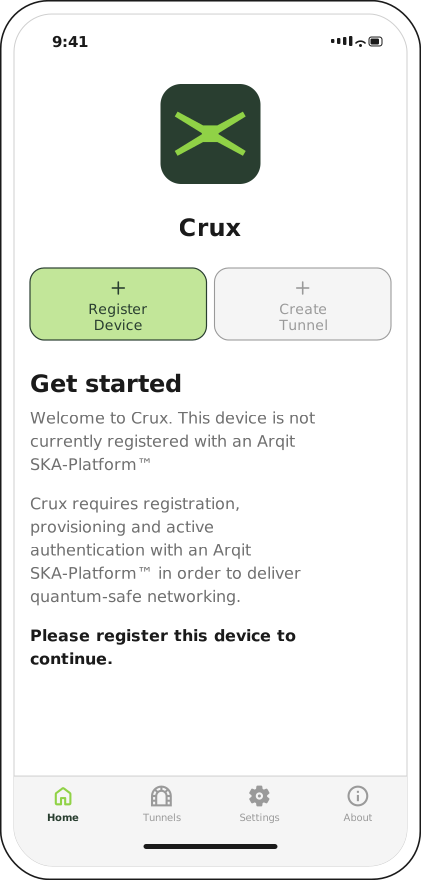
Create Tunnel stays greyed out until the device is registered — the two buttons enforce the order of setup.
Tap Register Device. This is a shortcut that switches you to the Settings tab; you can go there directly instead.
Fill in the registration form
The form sits at the top of the Settings tab, under the Arqit SKA-Platform™ heading.
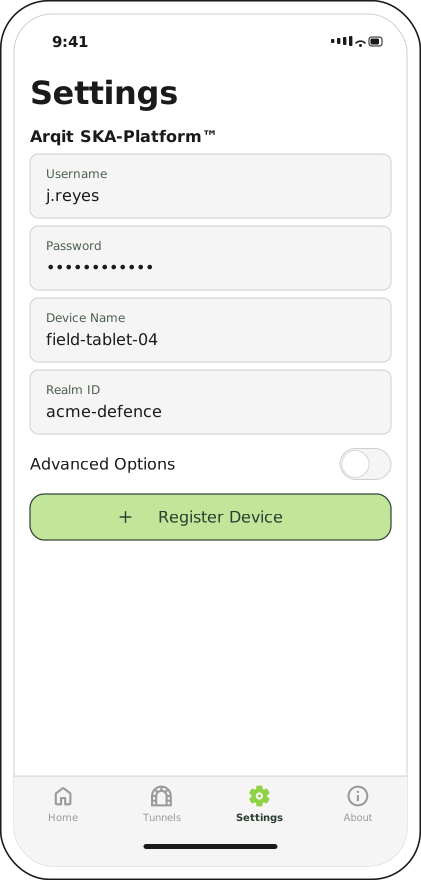
All four fields are required — the Register Device button stays disabled until each one has a value.
| Field | What to enter |
|---|---|
| Username | Your SKA-Platform account name, from your administrator |
| Password | The password for that account |
| Device Name | A label for this device. Choose something you will recognise in the SKA-Platform's device list — it is stored against the registration and shown back to you afterwards |
| Realm ID | The tenant this device belongs to, for example acme-defence |
Note
Device Name is a label, not an identifier. Crux generates a separate device ID at registration and shows it as the Device UUID once you are registered; that is the value your administrator will match against their records.
Advanced options
Leave Advanced Options switched off unless your administrator told you otherwise. Switching it on reveals two more fields, pre-filled with the defaults.
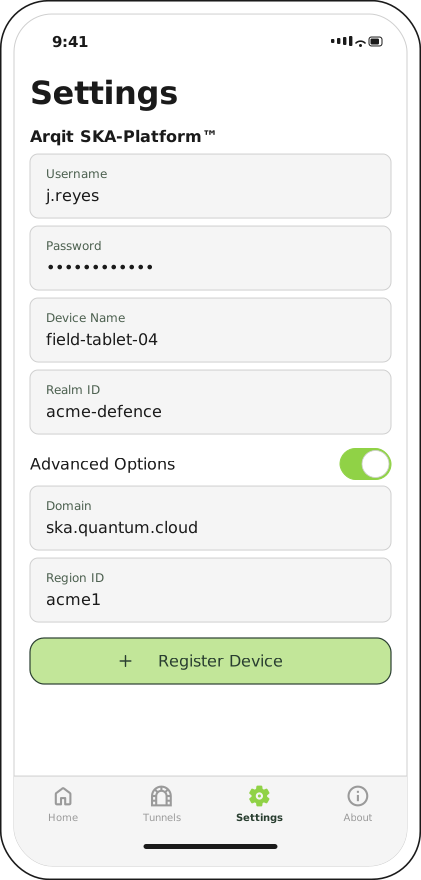
The defaults are ska.quantum.cloud and ska. Change them only when your administrator gives you
different values.
| Field | Default | What to enter |
|---|---|---|
| Domain | ska.quantum.cloud |
The SKA-Platform your organisation uses, if it is self-hosted or on a different endpoint |
| Region ID | ska |
The region your keys are served from, for example acme1 |
Note
Versions before 2.0.1 ignored the Region ID at connect time and always asked the default
region for keys, so a device registered to another region failed to connect with a
No KNode server keys error. This was fixed in 2.0.1 — check the version on the About tab
if you are seeing that error.
Register
Tap Register Device. The button shows a spinner while Crux contacts the SKA-Platform, then a toast confirms Successfully registered device.
If it fails, the toast reads Failed to register device. That covers every cause — wrong password, unreachable domain, unknown realm — so check the application log for the specific error rather than guessing.
Confirm the result
Once registered, the form is replaced by three read-only fields describing the registration.
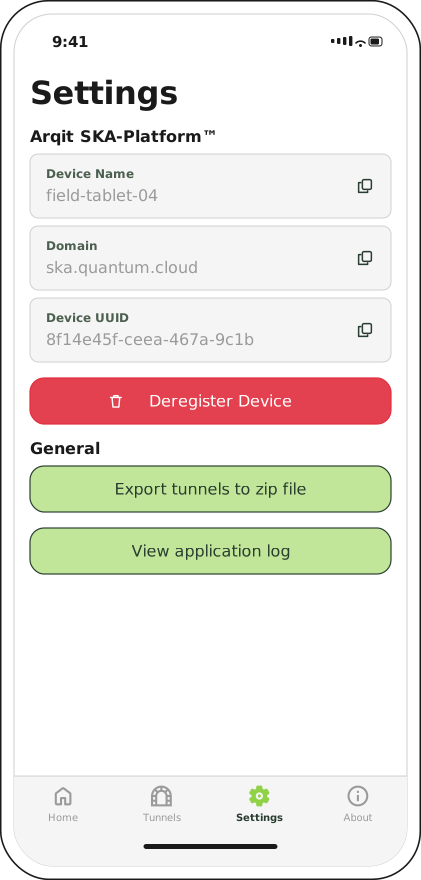
Each field can be copied to the clipboard — tap the copy icon at its right-hand edge. The Device UUID is what support will ask for.
The Home tab now moves on to the next stage.
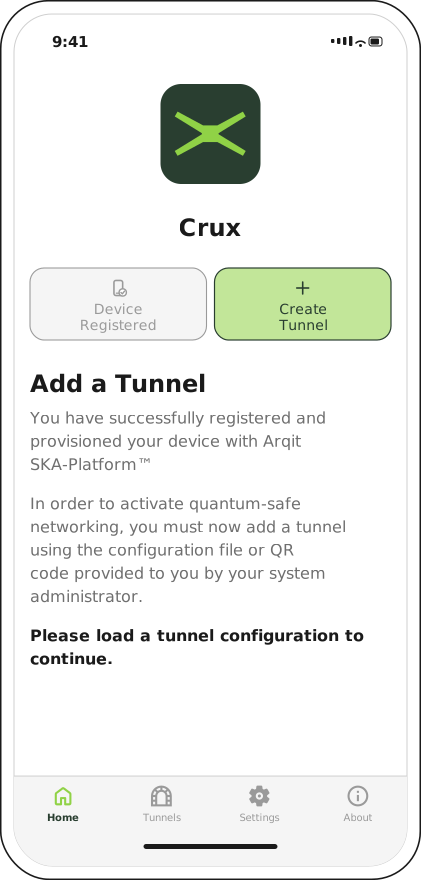
Register Device has become a greyed-out Device Registered, and Create Tunnel is now the live button.
Next step
With the device registered, add a tunnel.