Register the device
Registration introduces the device to your Arqit SKA-Platform. Until it completes, Crux cannot obtain the quantum-safe keys a tunnel needs, so nothing else in the app will work.
This is a one-time step per device.
What you see on first launch
Open Crux. The Home tab shows the Crux mark, two buttons, and a Get started explanation.
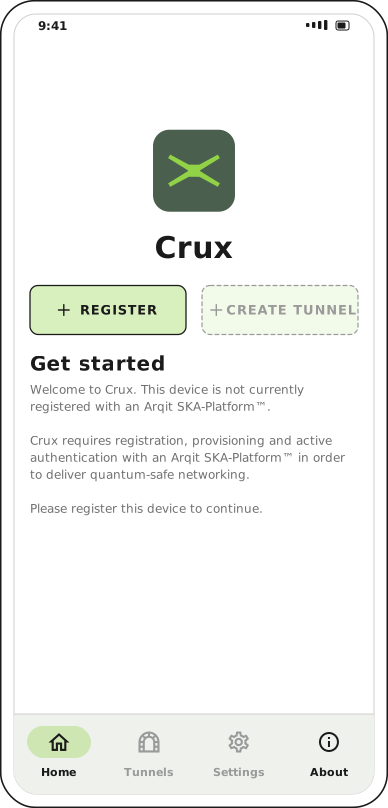
Before registration only Register is available. Create tunnel stays greyed out, as do the Tunnels and Settings tabs.
Tap Register.
Why the Settings tab is greyed out
Registration happens on the Settings screen, but the Settings tab in the nav bar is disabled until the device is registered. The Register button opens that screen directly. This is the only way in — tapping the greyed-out tab does nothing.
Fill in the registration form
The Settings screen opens on an Arqit SKA-Platform™ settings card.
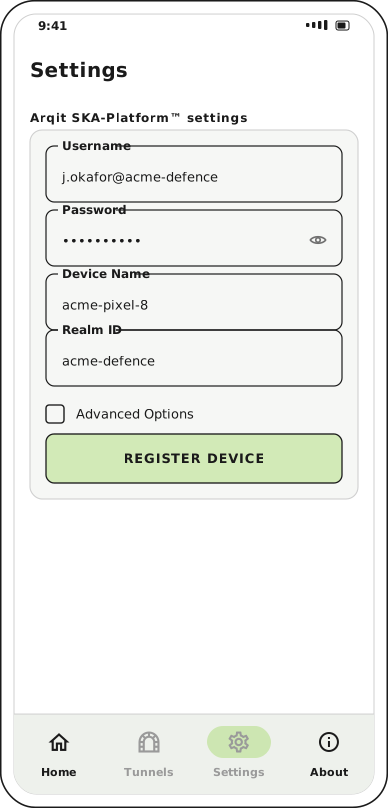
All four fields are required. Register Device stays disabled until each one has a value.
| Field | What to enter |
|---|---|
| Username | Your SKA-Platform account username |
| Password | Your SKA-Platform account password. Tap the eye to check what you typed. |
| Device Name | A name for this device. Spaces are stripped as you type. |
| Realm ID | The tenant this device belongs to |
Your administrator issues all four. There is no self-service portal — if you do not have them, ask before going further, because a failed registration gives no clue as to which value was wrong.
The Device Name is how this handset appears to your administrator on the platform, so use something identifiable rather than the default suggestion.
Advanced options
Leave Advanced Options unchecked unless your administrator told you otherwise. Checking it reveals two more fields, both then required.
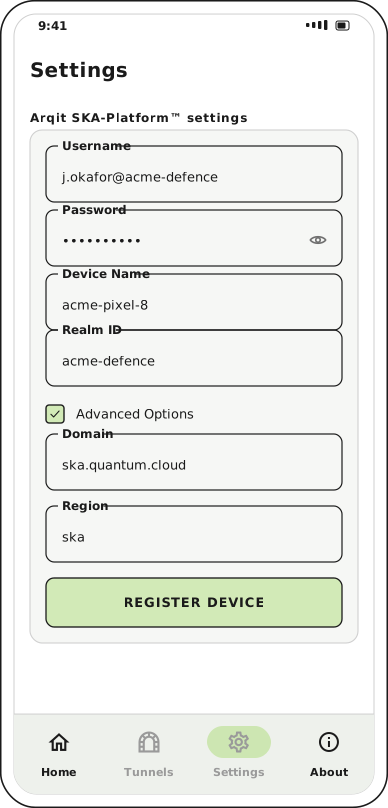
Domain and Region default to ska.quantum.cloud and ska. Change them only when your
deployment runs its own SKA-Platform.
| Field | Default | When to change it |
|---|---|---|
| Domain | ska.quantum.cloud |
Your organisation hosts its own SKA-Platform |
| Region | ska |
Your administrator gave you a different region |
Register
Tap Register Device. The button shows a progress indicator while Crux contacts the platform.
On success the card is replaced by the registered view. On failure a message appears at the bottom of the screen — see Troubleshooting for what the individual failures mean.
What you get after registering
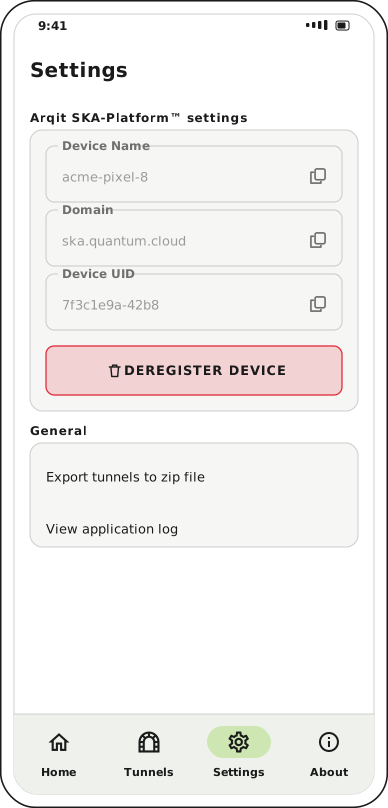
The three values are read-only. Each has a copy button, because your administrator will sometimes ask you to quote the Device UID.
| Field | What it is |
|---|---|
| Device Name | The name you chose, as the platform now records it |
| Domain | The SKA-Platform this device is registered against |
| Device UID | The platform's own identifier for this device |
The Device UID is the value to quote in a support request — it identifies this device unambiguously, where the device name may not.
Two things change elsewhere in the app at this point: the Settings tab is no longer greyed out, and the Home tab swaps its Get started copy for Add a tunnel.
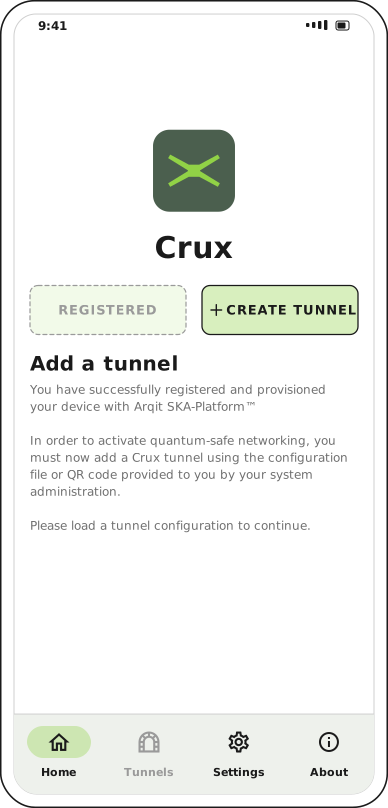
Register has become an inert Registered marker, and Create tunnel is now the live button.
Next step
With the device registered, add a tunnel.