Settings and admin tasks
The Settings tab holds the device registration, a couple of maintenance actions, and the way out. The About tab holds the version number and the legal notices.
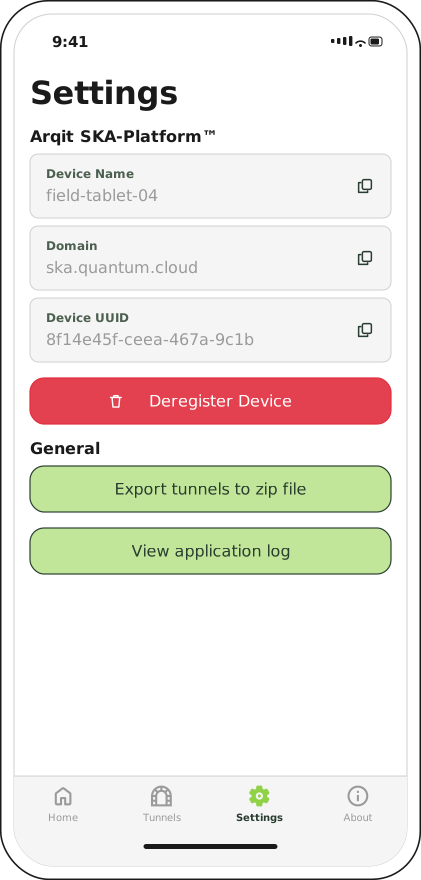
The registration details at the top are read-only. Everything actionable is below them.
Read your registration details
Three fields describe the registration, each with a copy button at its right-hand edge.
| Field | Why you would need it |
|---|---|
| Device Name | The label you chose at registration |
| Domain | The SKA-Platform this device is registered against |
| Device UUID | The identifier your administrator and Sirius support will ask for |
Tap the copy icon rather than transcribing the UUID — it is long, and a typo in a support request costs a round trip.
Export your tunnels
Export tunnels to zip file writes every saved tunnel to a .conf file, bundles them into
crux-tunnels.zip, and opens the iOS save dialog so you can choose where the archive lands —
On My iPhone, iCloud Drive, or any file provider you have installed.
Do this before you deregister, and before you replace the device. The archive is a plain zip of plain WireGuard configurations, which means two things:
- It imports cleanly back into Crux, one file at a time, through Tunnels → import → From Files.
- It contains your private keys in the clear. Treat it as a secret: store it somewhere encrypted, and delete it once you have restored from it.
If there are no tunnels to export, the button reports No tunnels to export rather than producing an empty archive.
Read the application log
View application log opens the log viewer, which is covered in Troubleshooting.
Deregister the device
Deregister Device severs the link with the SKA-Platform. Crux confirms twice when there are tunnels on the device — once about the tunnels, once about the registration.
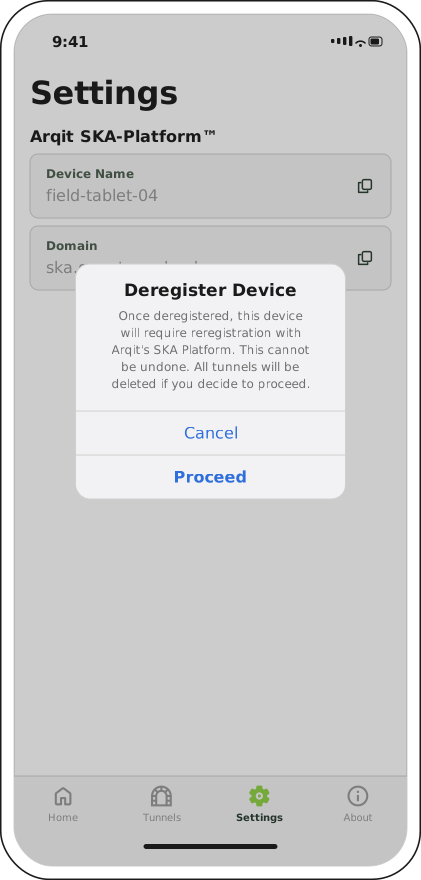
Both confirmations use Proceed and Cancel. Nothing is destroyed until you have passed the last one.
Deregistering:
- removes the registration, so the device can no longer obtain session keys;
- deletes every saved tunnel, not just deactivates them;
- cannot be undone — you register again from scratch, and your administrator may need to clear the old device from the SKA-Platform first.
Warning
Export your tunnels before deregistering. There is no undo and no automatic backup.
Deregister when you are handing the device on, retiring it, or moving it to a different tenant. For an ordinary problem, read the log first — deregistering is rarely the fix, and it costs you every tunnel on the device.
Deregistration from the administrator's side
Your administrator can also deregister this device from the platform, and that happens without the app being told.
The result is a device that still shows itself as registered, with its tunnels intact, but which cannot connect — because the keys a tunnel needs are no longer being issued to it. If connections start failing and nothing on the device changed, ask whether the device was deregistered centrally.
About
The About tab describes the product, links to the Crux site, and carries the version footer.
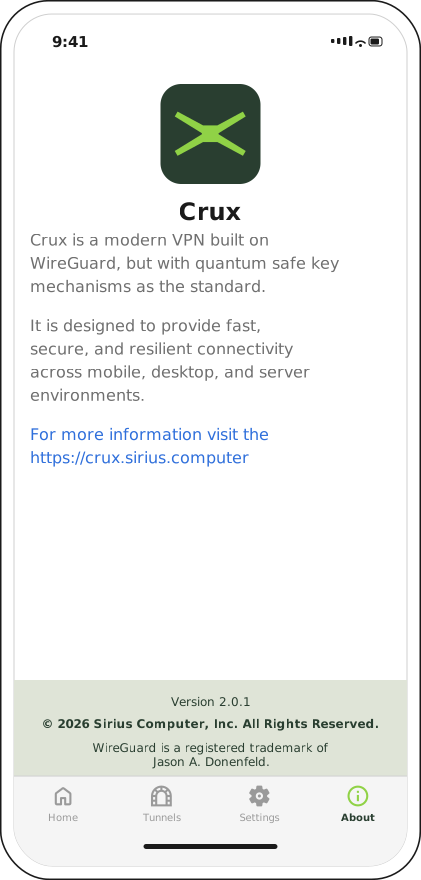
Quote the version from this footer in any support request.
The footer also carries the Sirius copyright notice and the WireGuard trademark attribution.