Install the app
Crux for iOS is distributed through the Apple App Store as an unlisted app. It does not appear in App Store search or in any category — the only way to reach the listing is the direct link below.
Install from the App Store
- Open the listing on the device: Crux by Sirius
- Tap Get, then Open.
Note
Searching the App Store for "Crux" will not find it. If the link does not open the listing, open it in Safari on the device rather than in another browser or a desktop, and ask your administrator to re-send it rather than searching.
What the app installs
Crux installs two pieces: the app itself, and a network extension that iOS runs separately to
carry the tunnel. You do not launch or manage the extension — iOS starts it when you connect and
stops it when you disconnect. It matters in one place only: the
application log interleaves entries from both, and
labels each one app or tunnel.
The first time you connect, iOS asks for permission to add a VPN configuration and then authenticates you with Face ID, Touch ID or your passcode. This is an iOS prompt rather than a Crux one, and it appears once per device.
Grant the camera permission
The fastest way to add a tunnel is by scanning a QR code, which needs the camera.
Crux asks for the permission the first time you open the scanner rather than at install time. Tap Allow when prompted. If you decline, the scanner shows an Open Settings button that takes you to the Crux entry in the iOS Settings app, where the permission can be granted later. Every step that offers a QR scan also offers a manual alternative, so you can still complete setup — it just takes longer.
Check the version
The About tab shows the installed version in its footer, above the copyright line.
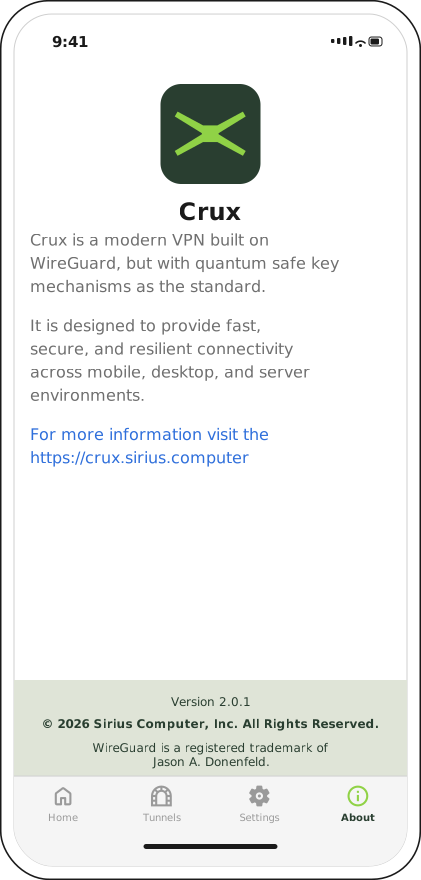
The version number is the quickest thing to quote when raising a support request.
Next step
With the app installed, register the device.