Troubleshooting
Crux reports most problems as a short message at the bottom of the screen, which disappears after a few seconds. The application log keeps the detail.
Read the application log
Open Settings → View application log.
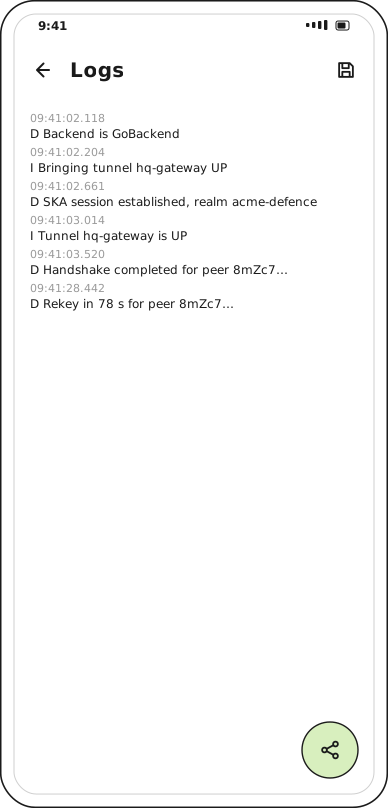
Newest entries at the bottom. Save to a file from the top bar, or share it from the button at the bottom right.
Each line carries a timestamp and a level — D for debug, I for information, E for an error.
Work backwards from the bottom to the first E, and read forwards from there: the entries just
before it usually name the stage that failed.
When raising a support request, share the log rather than describing it, and quote the Device UID from the Settings tab.
Registration fails
Crux distinguishes between a form problem and a platform problem.
The form will not submit
Register Device stays greyed out until Username, Password, Device Name and Realm ID all have values — and, if Advanced Options is checked, Domain and Region too. If it looks complete but is still greyed out, check for a field you cleared and did not refill.
Tapping it with a field missing prompts you for the specific one, such as Please enter Realm ID. Domain and Region are validated further:
| Message | Cause |
|---|---|
| Domain cannot contain spaces | A stray space, often from autocomplete or a paste |
| Region cannot contain spaces | As above |
| Region cannot contain dots | A domain was pasted into the Region field. Region is a short name like ska. |
The platform rejects it
| Message | What it means | What to do |
|---|---|---|
| Authentication failed. Please check your username and password. | The credentials were not accepted | Re-enter them. Passwords are case-sensitive; check the eye icon to confirm what you typed. |
| Connection timeout. Please check your network and URL settings. | The platform did not answer in time | Confirm the device has internet access. If Advanced Options is checked, verify the Domain. |
| Failed to connect to the server. Please verify the URL and try again. | The address could not be reached at all | Almost always a wrong Domain. Uncheck Advanced Options to fall back to the default, or get the correct value. |
| Device registration failed | The platform declined without a specific reason | Check the log, then confirm the Realm ID with your administrator. |
| Registration failed. Please check your settings and try again. | A fault the app could not classify | Check the log and share it with your administrator. |
A common cause of the last two is a realm that has no capacity left, or a device name already in use by another device.
Nothing happens when I tap a tab
Settings and Tunnels are deliberately greyed out until they have something to show.
| Tab greyed out | Why | Way in |
|---|---|---|
| Settings | The device is not registered | The Register button on Home |
| Tunnels | No tunnel is saved | The Create tunnel button on Home |
This is expected behaviour, not a fault. See the setup overview.
A tunnel will not import
| Message | Cause |
|---|---|
| Invalid QR code configuration | The code scanned cleanly but is not a WireGuard configuration. Check you were given a tunnel code, not something else. |
| Unable to import tunnel: … | The file is not a valid configuration, or the image contained no readable QR code |
| Failed to create tunnel: … | The configuration parsed but could not be saved, usually a duplicate name |
If the scanner will not open at all, Crux does not have the camera permission. Grant it in the Android settings for Crux, or import from a file instead.
A tunnel will not connect
| Message | What it means | What to do |
|---|---|---|
| Please choose a tunnel to connect to first | No tunnel is selected | Pick one from the selector on Home |
| Please register device with Arqit first | The device is not registered, or its registration is no longer valid | Register the device. If it shows as registered, see below. |
| Error while connection to tunnel | The tunnel could not be brought up | Check the log for the underlying error |
| Error preparing tunnel: … | Android refused to create the VPN interface | Usually a declined VPN permission. Try again and accept the system prompt. |
It says the device is not registered, but it is
If the Settings tab still shows a Device UID and connections fail with Please register device with Arqit first, the registration is no longer valid on the platform even though the device still holds it.
The usual cause is an administrator deregistering the device centrally. The app is not told, so it keeps showing itself as registered while the keys it needs are no longer issued.
Ask your administrator whether the device was deregistered. If it was, deregister on the device too and register again.
The tunnel connects but nothing works
The tunnel shows Connected but traffic does not reach anything.
Check the readouts on the Home tab in this order:
- Next handshake — if it never counts down, or the counter is stuck, the tunnel is not agreeing keys with the gateway. This is a tunnel or platform problem, not a routing one.
- Received — if Sent climbs but Received stays at zero, traffic is leaving the device and nothing is coming back. The gateway is not answering, or its configuration does not route your address.
- Latest handshake on the tunnel's Peer section — how long since the last successful exchange.
All three point outward rather than at the app, so collect them and pass them to your administrator along with the tunnel name.
If instead only some destinations fail, check the tunnel's Allowed IPs on the Peer section. That is the set of addresses routed through the tunnel; anything outside it goes out over the normal network.
The tunnel drops after a reboot
This is expected. Crux does not restore tunnels when the device restarts — reconnect from the Home tab, or from the quick settings tile.
Closing the app does not drop the tunnel, because it runs as an Android VPN service rather than inside the app's own window.
Getting help
Include all of the following:
- the version from the About tab
- the Device UID from the Settings tab
- the application log, saved or shared from the Logs screen
- the tunnel name, and which readouts on Home were moving