Troubleshooting
Crux reports failures as short toasts — Failed to register device, Failed to export tunnels — that name the operation but not the cause. The cause is always in the application log. Start there.
Read the application log
Settings → View application log.
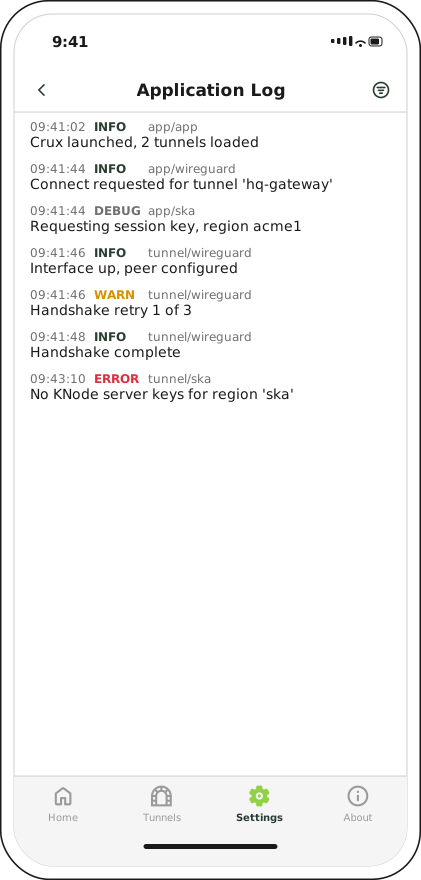
The view follows the newest entry and refreshes once a second, so you can leave it open while you reproduce a problem.
Each entry carries four things:
| Column | Meaning |
|---|---|
| Time | When the entry was written |
| Level | DEBUG, INFO, WARN or ERROR. Warnings are amber, errors red |
| Process / category | Which half of the app wrote it — app is Crux itself, tunnel is the network extension — and which subsystem |
| Message | The event. Tap and hold to select and copy the text |
The app and tunnel split matters. Registration problems are logged by app; anything that
happens after you tap the dial is usually logged by tunnel, because the network extension is a
separate process that iOS runs on the app's behalf.
Filter, share and clear
The toolbar button opens the filter menu. It fills in when a filter is active, so you can see at a glance that you are not looking at the whole log.
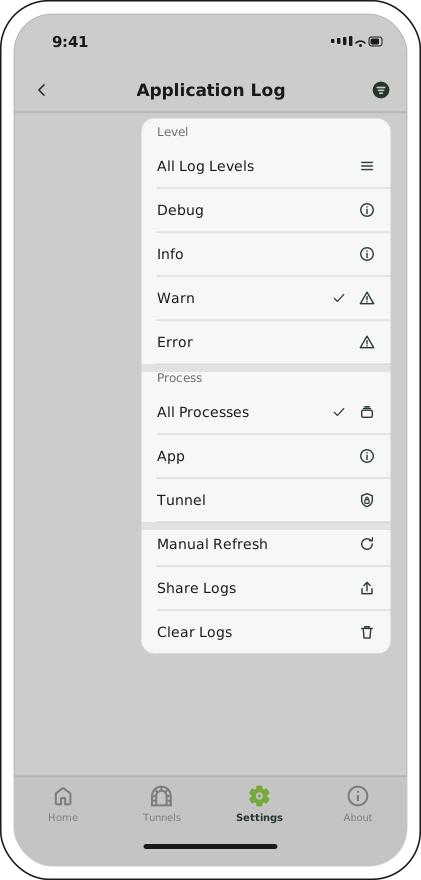
Filter by level, by process, or both. Share Logs exports what the log contains, not just the filtered view.
- Level — narrow to a single severity, or All Log Levels.
- Process — narrow to App or Tunnel, or All Processes.
- Manual Refresh — force a reload; the view already polls once a second.
- Share Logs — hand the log to the iOS share sheet, to attach to a support request.
- Clear Logs — wipe the on-disk log shared by the app and the network extension. Events after that point are still captured.
Note
Share the log before clearing it. Clearing is immediate once confirmed, and the file is not recoverable.
Registration fails
The toast reads Failed to register device. Filter the log to the app process and read the
most recent error.
| What the log points at | What to do |
|---|---|
| Authentication rejected | Re-enter the username and password. Both are case-sensitive, and iOS autocapitalisation is disabled on these fields for exactly that reason |
| Realm or tenant not found | Check the Realm ID spelling with your administrator |
| The host cannot be reached | Check the Domain under Advanced Options, and that the device has a route to it. A captive-portal Wi-Fi network will fail here |
| The device is already registered | Your administrator may need to clear the previous registration for this device from the SKA-Platform |
The tunnel will not come up
No KNode server keys
The tunnel asked for session keys from a region that does not serve them.
Check the version on the About tab first. Versions before 2.0.1 ignored the Region ID configured at registration and always asked the default region, so a device registered to any other region hit this on every connection attempt. Updating to 2.0.1 or later resolves that case.
The log entry names the region that was queried — compare it against the one your administrator issued. The Settings tab does not display the region after registration, so the log is the only place to read it back.
The dial spins and returns to Disconnected
The handshake never completed. Filter to the tunnel process and look at the entries after
Connect requested.
| Symptom in the log | Likely cause |
|---|---|
| Repeated handshake retries, no completion | The Endpoint is unreachable — wrong host or port, or blocked by the local network. UDP on the peer's port must be allowed outbound |
| The interface comes up, then drops | The peer rejected the session. Check the tunnel's Public Key pair with your administrator |
Nothing at all after Connect requested |
The session key was never issued. Look for an earlier ska entry, and see No KNode server keys above |
It connects but nothing loads
The tunnel is up and traffic is not reaching the far side.
- Check Received on the Home tab. If it stays at zero while Sent climbs, packets are leaving and nothing is coming back — that is a routing or firewall problem at the gateway, not a problem on the device.
- Check Allowed IPs on the tunnel's peer. Traffic for any range not listed there does not enter the tunnel at all.
- Check DNS servers on the interface. A tunnel that routes correctly but cannot resolve names looks identical to a dead tunnel from the browser.
The QR scanner will not open
The camera permission was declined. The scanner shows an explanation and an Open Settings button that takes you to the Crux entry in the iOS Settings app; switch Camera on there.
If you would rather not grant it, import from a file or the clipboard instead — the result is identical.
What to include in a support request
Send development [at] sirius [dot] computer:
- The version from the About tab
- The Device UUID from the Settings tab, copied with the copy button
- The Realm ID and Region ID used at registration
- The shared log, exported from the log viewer's menu
- What you did, what you expected, and what happened instead
Do not send the exported tunnel archive — it contains your private keys.