Connect and disconnect
Once the device is registered and a tunnel is saved, the Home tab becomes the connect screen, and this is the only screen you need day to day.
Choose a tunnel
The Home tab shows Disconnected, the connect button, and a tunnel selector.
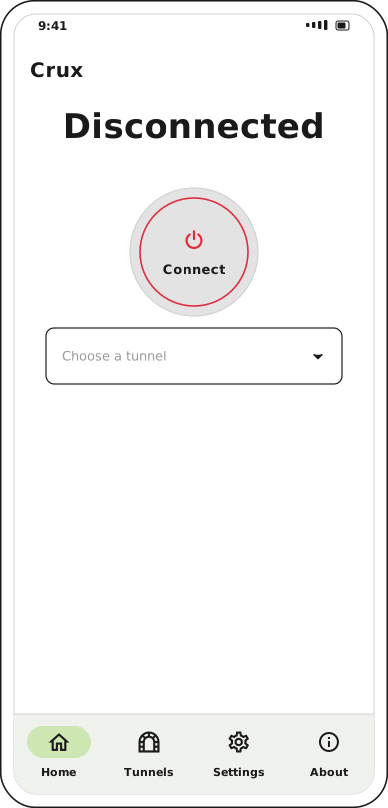
The red ring means disconnected. No tunnel is selected yet.
Tap the selector to list your tunnels.
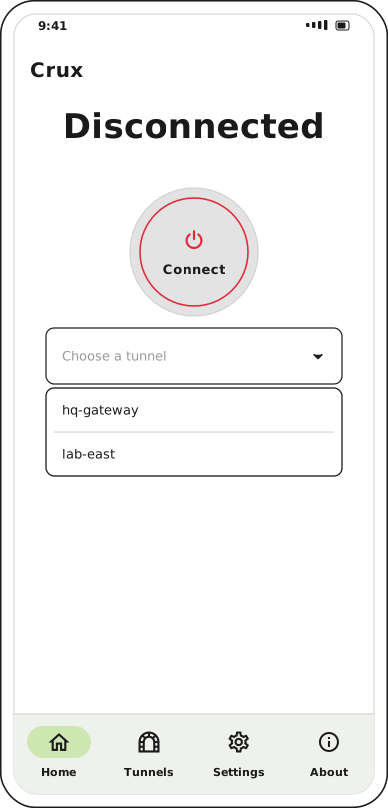
Crux does not preselect a tunnel, even when only one is saved.
Pick one. If you tap Connect without choosing, Crux prompts you with Please choose a tunnel to connect to first rather than guessing.
Connect
Tap the circular Connect button.
The first time on a device, Android asks permission to add a VPN configuration. Accept it; Crux continues connecting on its own once you do. This is asked once per device, not once per tunnel.
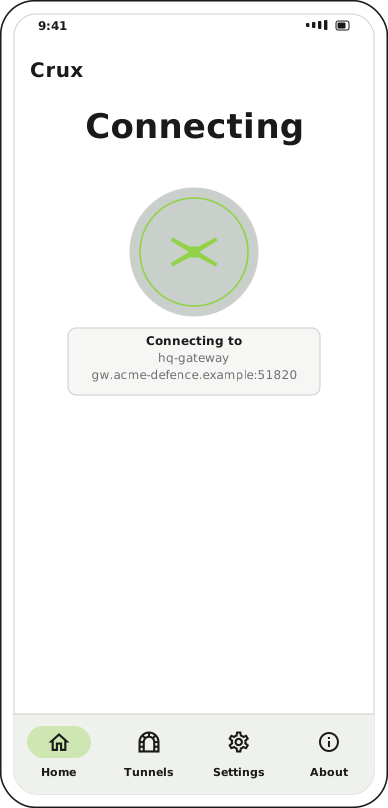
Connecting: the ring turns green and the mark spins. The card names the tunnel and gateway being negotiated.
While connecting, the button does nothing if tapped — the state has to resolve first.
Connected
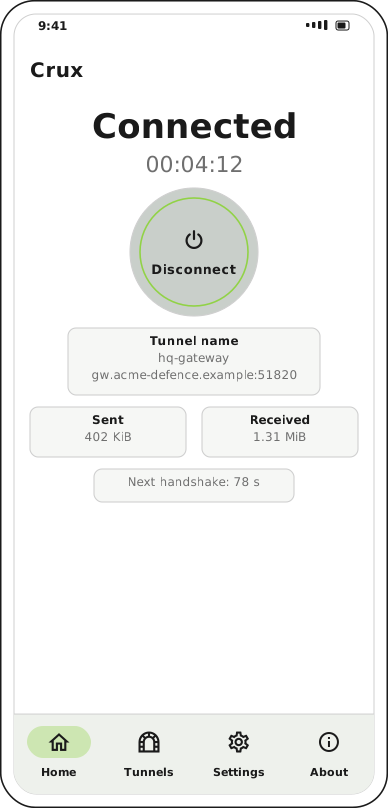
Connected. The button becomes Disconnect, and the readouts below it update live.
| Readout | What it tells you |
|---|---|
| Timer under the heading | How long this tunnel has been up, as HH:MM:SS |
| Tunnel name | The tunnel, and the gateway address and port it reached |
| Sent / Received | Traffic carried since the tunnel came up |
| Next handshake | Seconds until the next key exchange, or now |
Next handshake is the useful one for confirming the tunnel is genuinely live: WireGuard re-handshakes periodically, and a counter that keeps cycling means keys are still being agreed. A tunnel that shows as connected but never handshakes is not carrying traffic — see Troubleshooting.
Your traffic is now inside the tunnel. Android shows a key icon in the status bar for as long as it is up, and that icon is the system's, so it appears whether or not Crux is in the foreground.
Disconnect
Tap Disconnect. The tunnel drops immediately and the screen returns to the disconnected state with the tunnel still selected.
Nothing about disconnecting is destructive: the tunnel stays saved, and the device stays registered.
Connect from the quick settings tile
Crux ships an Android quick settings tile, so you can toggle the tunnel from the notification shade without opening the app.
Add it the way you add any tile: pull down the shade, edit the tile layout, and drag Crux in.
The tile always acts on the last tunnel you used — it shows that tunnel's name, lights up while it is connected, and toggles it when tapped. Before you have connected to anything it shows Crux, sits inactive, and opens the app instead.
To connect to a different tunnel, use the selector on the Home tab. The tile then follows that choice.
Switch tunnels
Disconnect first, then pick another tunnel from the selector and connect again. Crux carries one tunnel at a time, and the selector is not offered while a tunnel is up.
What survives a restart
| Event | Result |
|---|---|
| Closing the app | The tunnel stays up — it runs as an Android VPN service, not inside the app UI |
| Rebooting the device | The tunnel comes down. Reconnect from Home. |
| Losing network | The tunnel stays configured and recovers when the network returns |
Next step
For log exports and deregistration, see Settings and admin tasks. If a connection does not come up, see Troubleshooting.