Settings and admin tasks
The Settings tab holds the device's registration details and two general tools. It is greyed out until the device is registered.
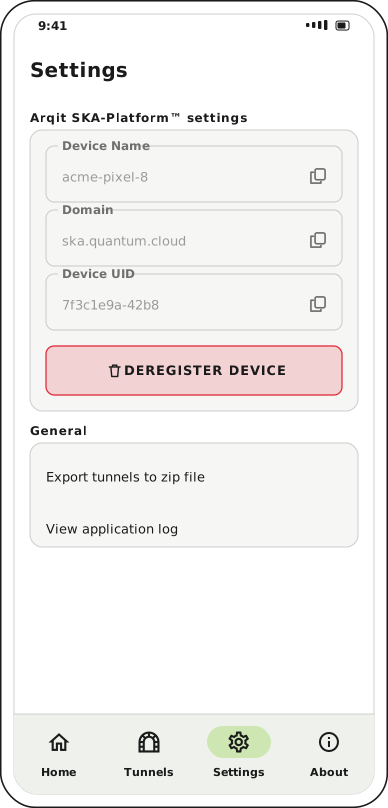
Two cards: the SKA-Platform registration above, general tools below.
Export tunnels to a zip file
Export tunnels to zip file writes every saved tunnel to a zip archive in the device's Downloads folder, and confirms with the saved path.
Crux asks you to authenticate first — the prompt reads Authenticate to export tunnels and takes your fingerprint, face or device PIN. That step is not optional: the archive holds each tunnel's private key in plain text, so it is as sensitive as the tunnels themselves. Treat the exported file accordingly, and delete it when you are done.
With no tunnels saved, the export stops with No tunnels exist.
Use it to move tunnels to another device, or when an administrator asks for a copy of what is configured. Do not use it as a backup you leave lying on the device.
View the application log
View application log opens the log Crux has kept since launch.
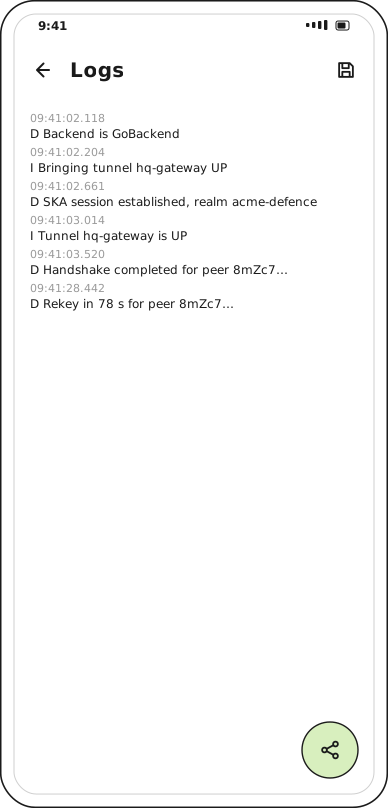
Newest entries are at the bottom. The top bar saves the log to a file; the button at the bottom right shares it.
This is the first thing to reach for when something fails, and the thing to attach to a support request. Troubleshooting covers how to read it.
Deregister the device
Deregistration undoes registration. It is the right move when you are handing the device on, or when an administrator asks you to re-register against a different realm.
Crux asks twice, because the action cannot be undone from the app.
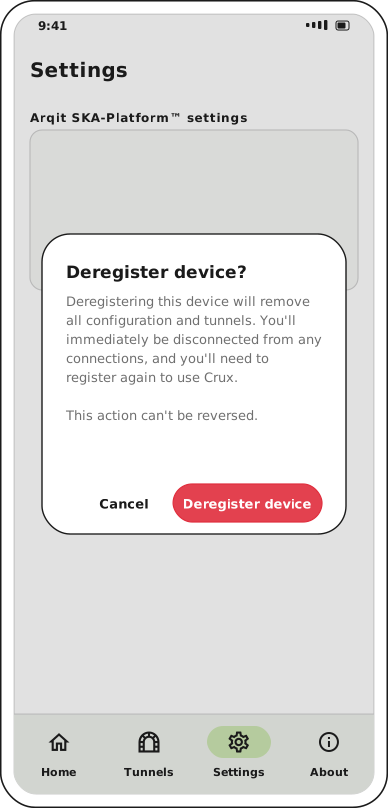
The first prompt explains what is lost.
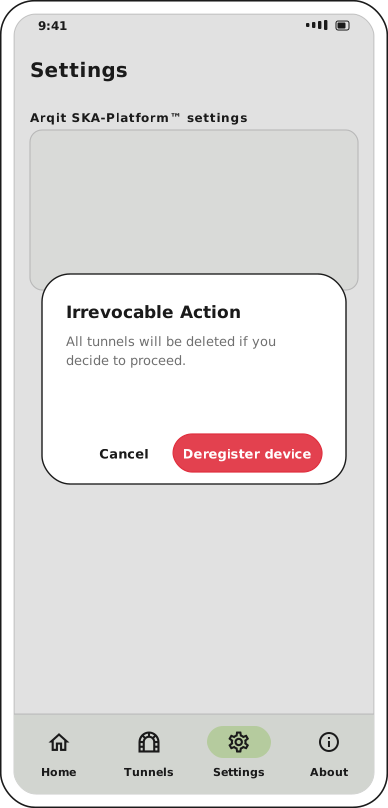
The second confirms it.
Deregistering, in order:
- disconnects the tunnel if one is up
- deletes every saved tunnel
- releases the device's registration on the SKA-Platform
Afterwards the app is back to its first-run state: Settings and Tunnels grey out again, and Home shows Get started.
What you need to register again
- your SKA-Platform credentials — the same username, password and realm ID as before
- your tunnel configurations — these are gone from the device, so you need the QR codes or
.conffiles again
The device name can be reused. Deregistration releases it on the platform, so re-registering with the same name works and there is nothing for an administrator to clean up first.
Check you can get your tunnels back first
Deregistration deletes tunnels without exporting them. If the configurations were only ever on this device, export them before you deregister.
Deregistration from the administrator's side
Your administrator can also deregister this device from the platform, and that happens without the app being told.
The result is a device that still shows itself as registered, with its tunnels intact, but which cannot connect — because the keys a tunnel needs are no longer being issued to it. If connections start failing and nothing on the device changed, ask whether the device was deregistered centrally.